Connecting to your app
After you create an app on the shared platform, connection details come from the app dashboard and from Management API queries — not from a dedicated environment detail page. Use those values in game clients, dedicated servers, and CI.
Production hosts
Build and test against production, using the hosts in Connecting game clients:
| Surface | URL |
|---|---|
| Studio | https://studio.crowdedkingdoms.com |
| GraphQL API (management and game) | https://ck.prod.crowdedkingdoms.com/graphql |
| Shared Game API (WebSocket) | wss://ck.prod.crowdedkingdoms.com/graphql |
All shared-platform apps use the same Game API host, scoped by appId. Production serves no GraphiQL and does not answer introspection: use the published schema with the GraphQL client of your choice.
Read platformConfig.sharedGameApiUrl or your app's gameApiUrl rather than hard-coding a host. Crowded Kingdoms' dev and test environments are internal and refuse outside accounts with TIER_ACCESS_REQUIRED.
Find your endpoints
From the app dashboard
- Sign in and open your org:
/orgs/:orgSlug. - Open Apps and select your app (
/orgs/:orgSlug/apps/:appSlug). - Copy Game API HTTP and WebSocket URLs from the connection section (they match the tier's shared endpoint).
From the Management API
Public tier defaults (no auth):
query {
  platformConfig {
    sharedGameApiUrl
    sharedGameApiWsUrl
  }
}
Per-app routing (requires org access):
query {
  app(appId: "<your-app-id>") {
    gameApiUrl
    deploymentTarget
    runtimeStatus
  }
}
mintAppToken also returns gameApiUrl and gameApiWsUrl — convenient when wiring clients right after sign-in.
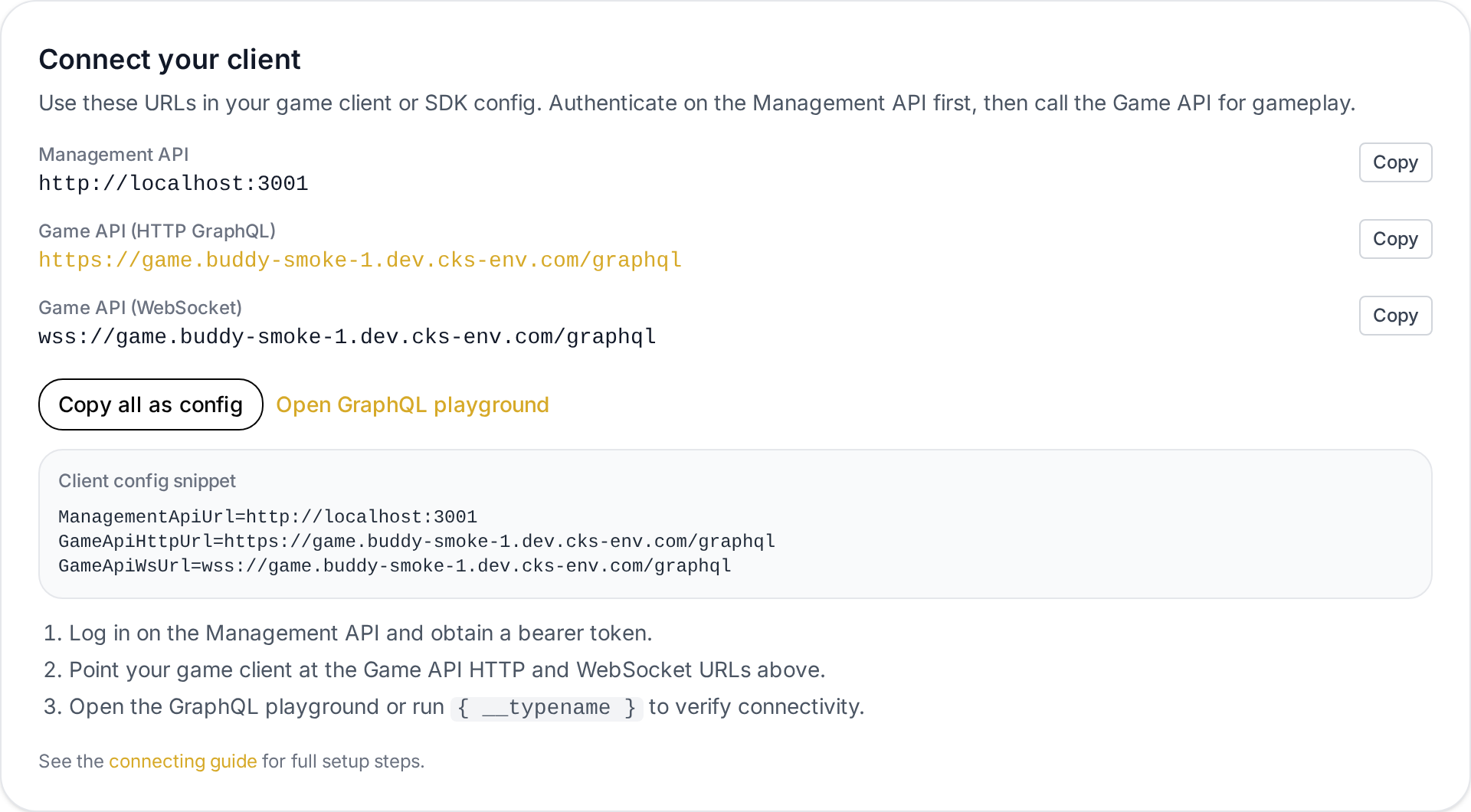
This screenshot shows the legacy environment detail layout. On the shared-only portal, the same URL fields appear on the app dashboard.
Connection URLs
| URL | Used for |
|---|---|
| Management API | Login and identity; returns the identity session token (gameplay tokens are minted separately — see Portals & app-scoped tokens) |
| Game API (HTTP GraphQL) | Browser and server clients using the Game API |
| Game API (WebSocket) | Real-time GraphQL subscriptions (same /graphql path with wss://) |
| Replication / Buddy | UDP replication when enabled for your tier; see Replication API |
Do not commit live tokens or secrets to source control.
Configure game clients
- Browser games: CrowdyJS talks to the shared Game API GraphQL endpoint. Use
mintAppToken(or shared environment routing) for URLs and the app-scoped token. - Dedicated servers / buddies: Use Replication API documentation with Buddy endpoints returned by the Game API after assignment.
- Custom engines: Call Game API GraphQL directly; authenticate with an app-scoped token for the app — mint one with
mintAppTokenfrom your identity session token (or the PKCE portal flow). The session token and org/service tokens are management-plane only and are rejected by the Game API. See Portals & app-scoped tokens.
The Management UI does not configure in-world data (grids, actors, chunks). That happens through the Game API after clients can reach the shared endpoint with a valid app token.
Org API tokens (automation)
For server-side scripts (CI, custom studio backends):
- Open
/orgs/:orgSlugand select the Tokens tab. - Create an org API token with the permissions you need.
- Call Management API GraphQL with the token (same operations you can run in the UI when permitted).
See Account and org basics and the Management API GraphQL reference for createApp, mintAppToken, and related types.
Keep tokens secret; rotation and least-privilege labels are your responsibility.
Verify connectivity
- Confirm
app.runtimeStatusisactive(queryapporappRuntimeState— see Shared environment & billing). - Sign in on the management API for the identity session token.
mintAppToken(appId)→ app-scoped token and game URLs.- Run
{ __typename }against the shared Game API withAuthorization: Bearer <app-scoped token>. - For realtime:
connectUdpProxy→connected: true; then actor updates or subscriptions (see Connecting game clients → Verify connectivity).
If runtimeStatus is not active, check wallet balance, spend caps, or subscription state before debugging client code.
Related guides
- Connecting game clients — production hosts and smoke checklist.
- Create your first app — register on the shared platform.
- Apps on the shared platform — routing, free tier, and app dashboard.
- Shared environment & billing — wallet, caps, and denial reasons.
- Management API — programmatic identity, apps, and billing.
- Game API — world and gameplay GraphQL.
- Replication API — Buddy / UDP replication.